Card Display
To put a card on screen, drag it onto the Card Display panel for that player. As soon as you start dragging, the panel splits into two drop zones. Which one you drop on decides what happens to the card.
Play and Highlight
Section titled “Play and Highlight”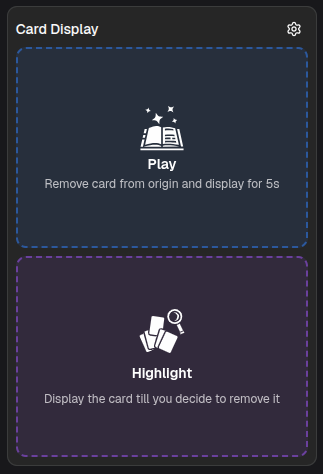
The blue zone: “Remove card from origin and display for Ns.”
The card leaves where it came from (out of the hand, out of the annotation) and goes on screen for the configured display duration, then clears itself. A blue countdown bar along the bottom of the panel shows the time remaining.
Use it for a card actually being cast: it comes out of the hand, is shown, and disappears on its own.
Highlight
Section titled “Highlight”The purple zone: “Display the card till you decide to remove it.”
The card stays where it came from and goes on screen until you take it down by hand. No timer, no countdown bar.
Use it to keep a card up while it is being discussed, without moving it out of the player’s hand.
Side by side
Section titled “Side by side”| Play | Highlight | |
|---|---|---|
| Card leaves its origin | Yes | No |
| Clears itself | Yes, after the display duration | No, you clear it |
Dragging from the library is the exception on the first row. The library is a permanent source, so nothing is consumed either way and Play and Highlight differ only by the timer.
While a card is on screen
Section titled “While a card is on screen”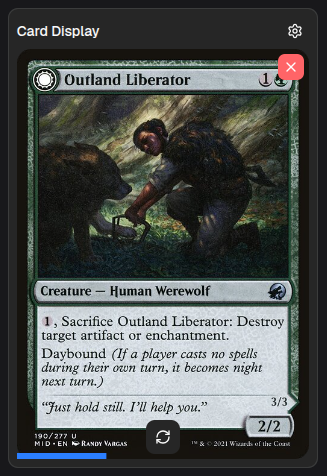
- X (top right) takes the card down immediately, whichever way it went up.
- Flip (the refresh icon at the bottom) appears for double-faced cards and turns the card over, on the overlay too.
- The countdown bar only appears for a played card, and restarts if you play another card over it.
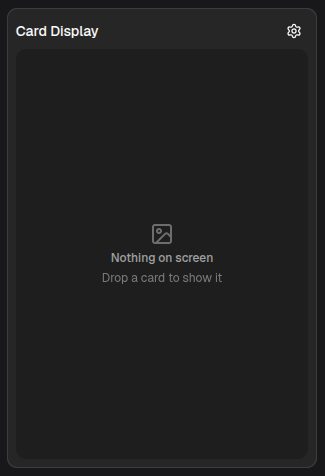
Empty, the panel reads “Nothing on screen” / “Drop a card to show it”.
Settings
Section titled “Settings”
The gear icon jumps straight to the Card Display configuration: display duration, position on the frame, and entrance animation. See Card Display configuration.